

Obtaining your State Bank of India (SBI) account statement in PDF format is quick, easy, and essential for financial planning, loan applications, and tax filing. 💼
SBI offers multiple secure online channels to access your transaction history instantly.
This updated 2025 guide covers every method to download your SBI statement — including how to unlock the password-protected PDF. 🔒
🚀 Quick Access: The Best Ways to Get Your Statement
| Method | Best For | Statement Period | File Format |
|---|---|---|---|
| 💻 SBI Net Banking | Desktop/Laptop users; long reports (up to 5–10 years) | Up to last 10 years | PDF, Excel (XLS) |
| 📱 SBI YONO App | Mobile users; quick access | Custom date range or recent months | |
| 📧 SBI Quick (SMS) | Simple SMS-based delivery to Email | Last 6 months | Password-Protected PDF |
💻 Method A: Download SBI Statement via Net Banking
SBI Net Banking is the most powerful and flexible way to download statements for long or custom durations directly on your computer. 🖥️
🪜 Step-by-Step Guide
🪜 Step-by-Step Guide- Login: Go to onlinesbi.sbi and log in using your Username and Password.
- Navigate: Click on ‘My Accounts & Profile’.
- Select: Choose ‘Account Statement’ under the ‘My Accounts’ section.
- Select Account: Pick the Account Number for which you need the statement.
- Choose Period:
- By Date: e.g., 01/04/2024 to 31/03/2025
- By Month: Select specific month/year
- Last 6 Months or Financial Year
- Select Format:
- ✅ Download in PDF format
- ✅ Download in Excel format
- Download: Click ‘Go’ or ‘Download’. The file will be saved in your downloads folder.
📱 Method B: Download SBI Statement via YONO App
The YONO SBI App (You Only Need One) is perfect for mobile users who want instant access to statements. 📲
🪜 Quick Steps
-
Login: Open the YONO SBI App and log in using your MPIN or User Credentials.
-
Go to Accounts: Tap on the ‘Accounts’ section (home dashboard).
-
View Transactions: Select your Savings Account → recent transactions appear.
-
Download/Email Icon: Tap the 📥 Passbook icon (or mail/down-arrow).
-
Choose Option:
-
Download PDF → saves password-protected file to your phone.
-
Send to Email → delivers the statement to your registered email.
-
-
Confirm Period: Choose the required duration and confirm download.
📧 Method C: SBI e-Statement via SMS (SBI Quick Service)
You can receive the last 6 months’ statement directly in your registered email inbox using an SMS — no login required!
🪜 Steps to Request e-Statement via SMS
-
Register for SBI Quick:
Send SMS —
Send this SMS from your registered mobile number: ESTMT <Account Number> <4-Digit Passcode> Example:
ESTMT 30045678901 1234
3. Receive Statement:
-
You’ll get an email with a password-protected PDF of your last 6 months’ statement.
-
The Passcode you entered will be the password to open the file.
🔒 SBI Statement PDF Password Format
SBI protects all e-statements with passwords. The password format depends on the method used.
📨 A. For Statements Received via Email (SBI Quick / Auto e-Statements)
| Component | Format | Example |
|---|---|---|
| Date of Birth (DOB) | DDMM | 01st Jan = 0101 |
| Separator | @ | @ |
| Registered Mobile (RMN) | Last 4 digits | 1234 |
| Final Password | DDMM@XXXX | 0101@1234 |
🧩 Example:
If your DOB is 1st January and your mobile ends in 1234, your password will be → 0101@1234.
💻 B. For Statements Downloaded via Net Banking or YONO App
| Component | Format | Example |
|---|---|---|
| Account Number | 11 Digits (no prefix) | 30XXXXXXX99 |
| Final Password | 11-Digit Account Number | 30XXXXXXX99 |
🧩 Example:
If your account number is 30123456789, your statement password is 30123456789.
🧾 Mini Statement (Last 5–10 Transactions)
If you just need a quick summary, use the missed call service. ☎️
-
Dial: 09223766666 (from registered mobile).
-
Result: You’ll instantly receive an SMS with your last 5 transactions.
💡 For complete monthly or annual statements, always use Net Banking or YONO.
Learn How to get an SBI account statement (SBI Bank Statement) Online. State Bank Of India provides many options to check the bank statement and download the account statement without visiting the Home Branch. By registering SBI e-statement, you will get an SBI account statement in your registered Email account. To get the SBI account balance easily, you can use the SBI mini statement service, missed call banking service, SMS banking services, internet banking etc.How can I get my SBI bank statement online?
You can get the SBI account statement using any of the following options:- To get your SBI account statement online, log into onlinesbi.com and choose “Account Statement” under “My Accounts & Profile.”
- You can use the SBI YONO App to get your SBI account statement on mobile in PDF format.
- SBI Anywhere app: It provides online account statements without net banking.
 You can easily download SBI bank account statements in PDF format using the Online SBI Account or SBI Anywhere App (SBI Bank Statement App).
Download SBI Account Statement Online
SBI Bank Statement through SMS
You can use the SBI SMS banking services to get your mini statement immediately. The SBI Mini Statement and E-Statement SMS Number can be reached by sending a text message from your SBI registered mobile number. This is the method that is both the quickest and most convenient for obtaining your SBI bank statement. Note: To use the SMS Banking option for the SBI Mini Statement, your Mobile Number must be registered with the bank.Also Read: How to Register Mobile Number in SBI
If your already registered Mobile Number is not working, then you have to register your Mobile Number again or update it through SBI Mobile Banking Services or Online Banking services.
 Note: You can make it easier to access the above SBI Mini Statement Number by storing it on your mobile phone in the form of a contact.
Now you will get an SMS ‘Your request successfully processed, and it will be delivered to your SBI registered email address.’
Note: You can make it easier to access the above SBI Mini Statement Number by storing it on your mobile phone in the form of a contact.
Now you will get an SMS ‘Your request successfully processed, and it will be delivered to your SBI registered email address.’
How to get Account Statements through SBI Internet Banking
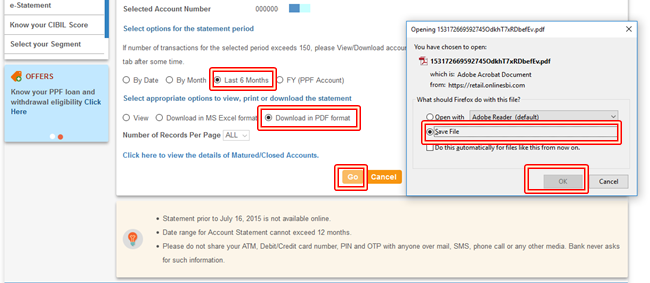
Find below the step-by-step process to download the SBI account statement Online. Step 1: Login SBI Net banking portal onlinesbi.com account using your SBI Internet Banking username and Password. Step 2: Now click the ‘Account Statement‘ option in the ‘ My Accounts & Profile‘ menu in your online SBI Account. Step 3: On the account statement page, you can see the list of your accounts in that bank. Select the Account you want to generate the SBI statement.
 Step 4: Now you will get an option to select the statement period. You can download the SBI Bank statement
- By Date (Select a Start Date and an End Date)
- By Month: Select the Year and then Select the Month to download the SBI Bank Statement
- Last Six Months: by selecting this option, you can download the bank statement for the last six months.
 Step 5: Select the appropriate option to download the Bank Statement. You can see Download in Excel Format and Download in PDF there.
Select one option and then click on the ‘Go‘ button and Save the file to download sbi bank statement.
Step 5: Select the appropriate option to download the Bank Statement. You can see Download in Excel Format and Download in PDF there.
Select one option and then click on the ‘Go‘ button and Save the file to download sbi bank statement.
 Note: If the number of transactions in the selected period is greater than 150, then a new option (Pending Statement ) will be activated in your ‘My Accounts & Profile‘ menu.
You can view or download sbi bank statement from the ‘Pending Statement’ menu. See the screenshot below.
Note: If the number of transactions in the selected period is greater than 150, then a new option (Pending Statement ) will be activated in your ‘My Accounts & Profile‘ menu.
You can view or download sbi bank statement from the ‘Pending Statement’ menu. See the screenshot below.
 To download the SBI Bank statement, just click on the ‘Request ID’ and then select the download format.
You can choose from Excel or PDF file and
Read Also: SBI Online Balance Enquiry without Net Banking
To download the SBI Bank statement, just click on the ‘Request ID’ and then select the download format.
You can choose from Excel or PDF file and
Read Also: SBI Online Balance Enquiry without Net Banking
How to download 6 6-month Bank statement from SBI YONO app in PDF Format
Another easy option for the SBI account holders to get the SBI Account statement on Mobile in PDF format is to use the SBI YONO App. SBI savings bank account holders can access several features within the YONO app, including the ability to check their balances, transfer money, apply for loans, and many more features. To download the SBI statement from Yono App follow the below steps: Step 1: Download the SBI Yono App from the Google Play Store create MPIN and Log in or use your User ID and Password to log in Step 2: After the login, you will be redirected to the dashboard. Click on the Accounts menu.
Step 3: Now you can see your Account summary which will show your account balance, borrowings, etc
Click on the > button against your account number.
Step 2: After the login, you will be redirected to the dashboard. Click on the Accounts menu.
Step 3: Now you can see your Account summary which will show your account balance, borrowings, etc
Click on the > button against your account number.
 Step 4: In the next screen, you can see your account statement.
Note that by using the Yono SBI App you can view, download or email the last 150 transactions of your SBI statement.
Step 5: Click on the Passbook icon against the transaction details to download the SBI bank statement in PDF format.
Step 4: In the next screen, you can see your account statement.
Note that by using the Yono SBI App you can view, download or email the last 150 transactions of your SBI statement.
Step 5: Click on the Passbook icon against the transaction details to download the SBI bank statement in PDF format.
 Step 6: Click on the Email Icon to get the account statement to your SBI registered Email address.
YONO SBI statement download location
When you download the account statement through the Yono app, you can see the message ‘File downloaded successfully in file ///storage/emulated/0/ ‘ To view the downloaded PDF file on your Android phone, follow the steps below: Open your Mobile’s File Manager and then open the Downloads folder. There you can see the PDF statement.YONO SBI statement Download Password
You need a password to view the Bank account statement downloaded in PDF format from the Yono App.Download Account Statements through SBI Anywhere App Personal
State Bank Of India launched the SBI Anywhere App to help SBI Customers to easily manage their accounts. Many SBI Bank services are available in the SBI Anywhere App. With the SBI Anywhere app, you can get sbi account statements online without net banking. ie; You can register and use the SBI Anywhere APP even if you don’t have an Internet Banking Account. If you have not yet installed the SBI Anywhere App, you can download it from the Google Play Store. You can use the SBI Anywhere App Personal to easily download SBI Bank Account Statements in PDF Format. If you have not installed the SBI Anywhere App, Learn the step-by-step SBI Anywhere Mobile App Registration Process. Find below the step-by-step process to download the SBI Bank Account statements through the SBI Anywhere App. Step 1: Open the SBI Anywhere App on your Mobile and log in with your SBI Anywhere App Quick PIN (Easy PIN) or your Internet Banking User Name and Password. Step 2: After the Login click you will be redirected to the Dashboard where you can see many options to manage your SBI account like ‘Fund Transfer’, ‘Top Up Recharge’,’ Bill Payments’, ‘e-deposits’, ‘Quick Transfer’ etc
Now click on ‘My Accounts‘ to download the Bank Account Statement.
Step 3: On the ‘My Accounts‘ page, you can see many options like ‘ Accounts Summary’, ‘Mini Statement’, ‘Passbook’, ‘Statement Download‘ etc.
Click on ‘Statement Download‘.
Step 2: After the Login click you will be redirected to the Dashboard where you can see many options to manage your SBI account like ‘Fund Transfer’, ‘Top Up Recharge’,’ Bill Payments’, ‘e-deposits’, ‘Quick Transfer’ etc
Now click on ‘My Accounts‘ to download the Bank Account Statement.
Step 3: On the ‘My Accounts‘ page, you can see many options like ‘ Accounts Summary’, ‘Mini Statement’, ‘Passbook’, ‘Statement Download‘ etc.
Click on ‘Statement Download‘.
 Step 4: Now you will get an option to select your SBI Account Number from a list. Select your SBI Account Number (See Screenshot above).
Step 5: You can now select the SBI Bank Account statement ‘Start Date‘ (Click the Calendar Icon to select the date) and ‘End Date‘.
Note that using SBI Anywhere App Statement Download options, the Date range cannot exceed 12 months.
After selecting the required Date Range, click on the ‘Download‘ button.
Step 4: Now you will get an option to select your SBI Account Number from a list. Select your SBI Account Number (See Screenshot above).
Step 5: You can now select the SBI Bank Account statement ‘Start Date‘ (Click the Calendar Icon to select the date) and ‘End Date‘.
Note that using SBI Anywhere App Statement Download options, the Date range cannot exceed 12 months.
After selecting the required Date Range, click on the ‘Download‘ button.
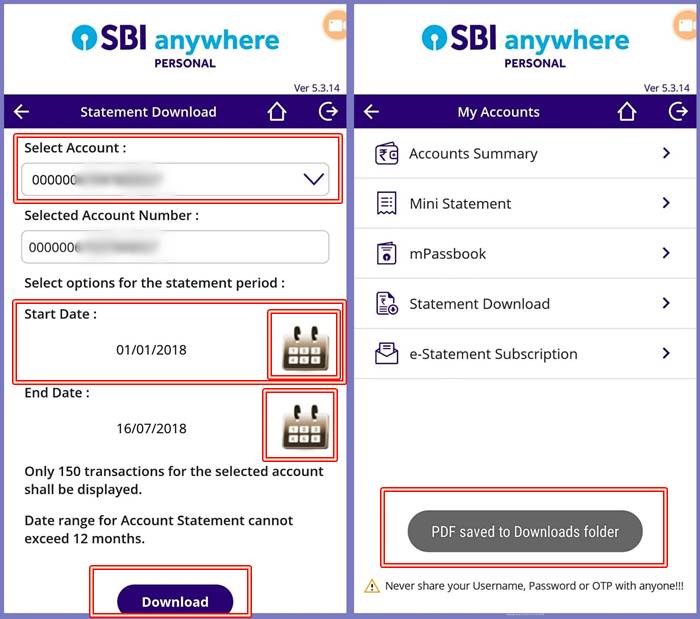 Your SBI Bank Account Statement will be generated for the selected Date Range and the PDF saved to the Downloads folder of your Mobile Phone.
You can email or take printouts of your Bank Statements in PDF form.
Your SBI Bank Account Statement will be generated for the selected Date Range and the PDF saved to the Downloads folder of your Mobile Phone.
You can email or take printouts of your Bank Statements in PDF form.
How to Register for E-Statement in SBI
You can easily register for e-statement through the SBI online account or SBI Anywhere App and can get the e-statement in your Inbox Daily, Weekly, Monthly, Yearly or any other frequency you choose if you have registered your Email address with SBI. If you have not yet registered your Email Account with the SBI Account or you want to change the registered email account in SBI, then learnHow to Register/Update Email ID in SBI Savings Account Online
Find below the step-by-step process to register for the e-statement in SBI. Step 1: Log on to your Onlinesbi.com account and Click on e-Statement. Now you will get the e-statement Registration Page. Step 2: Select the SBI Account you want to register for the e-statement.
Now you can select the Frequency (Eg: Daily, Weekly, Monthly, Yearly etc), Cycle and the Day you want to get the e-statement in your Inbox.
Click on the Submit button.
Step 3: Now you will get a confirmation page. Confirm your SBI Account details like the given EMail address, Account Number etc and click on the ‘Confirm‘ button.
Step 2: Select the SBI Account you want to register for the e-statement.
Now you can select the Frequency (Eg: Daily, Weekly, Monthly, Yearly etc), Cycle and the Day you want to get the e-statement in your Inbox.
Click on the Submit button.
Step 3: Now you will get a confirmation page. Confirm your SBI Account details like the given EMail address, Account Number etc and click on the ‘Confirm‘ button.
 Step 4: Now you will get an OTP in your SBI Registered Mobile Number. Enter the OTP and click on the ‘Submit‘ button.
Now you can see a Confirmation Message like
“Your Request for e-statement is received and it will be sent to ro******@gmail.com as per the chosen frequency”
Please note that you will get the e-statement if you have any transactions in your e-statement selected frequency period.
You can De-register the SBI e-statement at any time by clicking the ‘De-Register’ tab in the same window, selecting the SBI account and then clicking the ‘Submit‘ button.
Step 4: Now you will get an OTP in your SBI Registered Mobile Number. Enter the OTP and click on the ‘Submit‘ button.
Now you can see a Confirmation Message like
“Your Request for e-statement is received and it will be sent to ro******@gmail.com as per the chosen frequency”
Please note that you will get the e-statement if you have any transactions in your e-statement selected frequency period.
You can De-register the SBI e-statement at any time by clicking the ‘De-Register’ tab in the same window, selecting the SBI account and then clicking the ‘Submit‘ button.
How to Register for E-Statement in SBI through the SBI Anywhere App
By using SBI Anywhere App, you can subscribe for the e-statements easily. Follow the steps below: 1: Click on ‘My Accounts‘ in the SBI Anywhere App Dashboard and click on ‘ e-statement Subscription‘. 2: Select your SBI Account. You can see your Email address already registered with SBI. Choose the e-Statement Frequency and click on the ‘Submit’ button.
3: in the next screen, you will get an option to confirm the subscription. Click on the ‘Confirm‘ button.
If your registration is successful, you can see a confirmation message there.
If you have any Questions, Post in as comment below.
2: Select your SBI Account. You can see your Email address already registered with SBI. Choose the e-Statement Frequency and click on the ‘Submit’ button.
3: in the next screen, you will get an option to confirm the subscription. Click on the ‘Confirm‘ button.
If your registration is successful, you can see a confirmation message there.
If you have any Questions, Post in as comment below.
SBI Account Statement PDF Password 2026 — How to Open
Every SBI statement PDF is password-protected. The password format depends on where you downloaded it from. This is the most common source of confusion for SBI customers.
| Download Source | Password Format | Example |
|---|---|---|
| YONO SBI App | Date of Birth in DDMMYYYY format | DOB 15 May 1990 → Password: 15051990 |
| SBI Net Banking (OnlineSBI) | Your full SBI account number | Account: 12345678901 → Password: 12345678901 |
| SBI Email e-Statement | Last 5 digits of mobile + DOB in DDMMYY | Mobile: XXXXX12345, DOB: 16 Sep 1982 → Password: 12345160982 |
| SBI Credit Card Statement | First 4 letters of name (lowercase) + DDMM of DOB | Name: Rahul, DOB: 15 May → Password: rahu1505 |
Tip: Use Adobe Acrobat Reader, Google PDF Viewer, or any PDF reader to open the file. If the password does not work, try without leading zeros in your account number for Net Banking statements.
SBI Account Statement via WhatsApp Banking 2026
SBI now offers account statement access through WhatsApp — no app login required. This is the easiest method for getting a mini statement instantly.
- Save SBI WhatsApp Banking number: 919022690226 in your contacts.
- Send “Hi” from your SBI registered mobile number.
- Select “Account Statement” from the menu options.
- Choose the period (last 5 transactions or last 30 days).
- Receive your mini statement directly in WhatsApp chat.
Note: WhatsApp Banking only provides mini statements (last 5-10 transactions). For full statements with PDF download, use Net Banking or YONO app.
SBI Account Statement via SMS 2026
Get your SBI mini statement instantly via SMS without internet or app login:
| Service | SMS to Send | Number | Result |
|---|---|---|---|
| Mini Statement | MSTMT | 09223866666 | Last 5 transactions via SMS |
| Balance Enquiry | BAL | 09223766666 | Account balance via SMS |
| Full Statement (Email) | ESTMT <Account Number> <Email> | 09223866666 | PDF statement to your email |
All SMS must be sent from your SBI registered mobile number. Standard SMS charges apply.
SBI Statement Download Formats and History
- PDF format: Available via YONO app, Net Banking, and email
- Excel format: Available via Net Banking — select Excel option at download
- CSV format: Available via Net Banking for accounting software import
- Statement history: Up to 10 years available via SBI Net Banking
- YONO app: Up to 1 year statement history available
When SBI Statement Download Does Not Work
A few things go wrong more often than they should. Here is what actually fixes them:
| Problem | Most Likely Cause | Fix |
|---|---|---|
| PDF opens but shows gibberish | Wrong password for that download source | YONO download = date of birth DDMMYYYY. Net Banking download = full account number. Credit card = first 4 letters of name lowercase + DDMM of DOB. Each source has a different password. |
| Download button missing in YONO | App needs update or account type issue | Update YONO SBI from Play Store or App Store. Current accounts sometimes need Net Banking instead of YONO for statements. |
| Statement shows only 2 years | YONO history limit | Switch to Net Banking at onlinesbi.sbi — shows up to 5 years. Older than 5 years requires a branch visit. |
| SMS ESTMT not delivering | Mobile number not registered or wrong profile password | Confirm registered mobile via YONO — Profile — Personal Details. Format must be: ESTMT (space) account number (space) 4-digit profile password sent to 72089 33145. |
| e-Statement email not arriving | Email not linked or service inactive | Register email via Net Banking — e-Services — e-Statement. Check spam folder. Allow 24 hours for first delivery after activation. |
| Statement rejected for loan or visa | Unstamped PDF not accepted | Embassy or bank needs official stamped copy. Visit home branch, request printed statement with stamp and signature. Takes same day or next day. Charges around Rs 100-200. |
When SBI Statement Download Does Not Work
A few things go wrong more often than they should. Here is what actually fixes them:
| Problem | Most Likely Cause | Fix |
|---|---|---|
| PDF opens but shows gibberish or wrong characters | Wrong password for that download source | YONO download = date of birth DDMMYYYY. Net Banking download = full account number. Credit card statement = first 4 letters of name lowercase + DDMM of DOB. Each source has a different password. |
| Download button missing in YONO app | App needs update or account type issue | Update YONO SBI from Play Store or App Store. Current accounts sometimes need Net Banking instead of YONO for statements. |
| Statement shows only 2 years of history | YONO app history limit | Switch to Net Banking at onlinesbi.sbi which shows up to 5 years. Older than 5 years requires a branch visit to home branch. |
| SMS ESTMT not delivering to email | Mobile number not registered or wrong profile password | Confirm registered mobile via YONO — Profile — Personal Details. Format: ESTMT space account number space 4-digit profile password sent to 72089 33145. |
| Monthly e-Statement email not arriving | Email not linked or service inactive | Register email via Net Banking — e-Services — e-Statement. Check spam folder. Allow 24 hours after activation for first delivery. |
| Statement rejected for loan or visa | Unstamped PDF not accepted by authority | Embassy or bank needs official stamped copy. Visit home branch and request printed statement with stamp and signature. Usually ready same day. Branch charges around Rs 100-200. |
The password depends on download source. YONO app: your date of birth in DDMMYYYY format (example: 15051990). Net Banking: your full SBI account number. Email e-statement: last 5 digits of registered mobile number plus DOB in DDMMYY format. Credit card statement: first 4 letters of name in lowercase plus DDMM of DOB.
You can get SBI account statement without Net Banking using: (1) YONO SBI app — login with MPIN, go to Accounts, tap Account Statement, download PDF. (2) WhatsApp Banking — send Hi to 919022690226 from registered mobile. (3) SMS — send MSTMT to 09223866666 for mini statement. (4) Visit nearest SBI branch or ATM for printed statement.
SBI Net Banking provides account statements for up to 10 years of history. YONO SBI app provides up to 1 year of statement history. For statements older than 10 years, visit your home branch with a written request.
Save 919022690226 in your contacts. Send Hi from your SBI registered mobile number. Select Account Statement from the menu. This gives you the last 5-10 transactions as a mini statement. For full PDF statements, use SBI Net Banking or YONO app.
Log in to SBI Net Banking at onlinesbi.sbi. Go to My Accounts then Account Statement. Select the date range. At the download options, choose Excel instead of PDF. The Excel file is not password protected and can be opened directly in Microsoft Excel or Google Sheets.
For official purposes like visa or loan applications, download your SBI account statement from Net Banking as a PDF — this carries the bank letterhead and is accepted by embassies and financial institutions. Select 6 months or 1 year range. If a bank-certified statement is required, visit your home branch and request a certified printed statement with branch stamp.
Common fixes: (1) Use Adobe Acrobat Reader — not browser PDF viewer. (2) Check you are using the correct password format for your download source. (3) For Net Banking statements, try account number without leading zeros. (4) Re-download the statement — the file may be corrupted. (5) Try opening on a desktop computer if mobile fails.
SBI Account Statement via SBI Quick App 2026
SBI Quick is a separate lightweight app that lets you request statements without full Net Banking login — ideal for users who find YONO complex.
- Download SBI Quick from Google Play Store or Apple App Store.
- Register using your SBI registered mobile number and debit card details.
- Open app → tap Account Statement.
- Select account and date range.
- Statement is sent as PDF to your registered email address.
SBI Quick vs YONO — Which to Use?
| Feature | SBI Quick | YONO SBI |
|---|---|---|
| App Size | Lightweight — small | Heavy — large download |
| Statement Download | Sends to email as PDF | Direct PDF download in app |
| Statement History | Up to 6 months | Up to 1 year |
| Password to open PDF | Last 5 digits of mobile + DOB DDMMYY | DOB in DDMMYYYY format |
| Best For | Quick email statement | Full banking features |
SBI e-Statement Auto Email Service 2026
SBI sends monthly e-statements automatically to your registered email if you have activated the e-statement service. This is different from manually downloading your statement.
How to Activate SBI e-Statement Service
- Log in to SBI Net Banking at onlinesbi.sbi
- Go to My Accounts → e-Statement
- Select your account and choose frequency: Monthly or Quarterly
- Confirm your registered email address
- Click Submit — activation is immediate
Once activated, SBI automatically emails your statement every month as a password-protected PDF. Password: last 5 digits of mobile + DOB in DDMMYY format.
Guide by Robins Antony, Digital Finance Writer, Webova Soft, Changanacherry, Kerala. SBI statement download methods verified from official YONO SBI app and onlinesbi.sbi Net Banking portal as of September 2026. SBI updates its interface periodically — steps may vary slightly by app version. For official help call SBI at 1800 11 2211.

When we download statement it ask password